Connectors
Jira: tickets and filing bugs
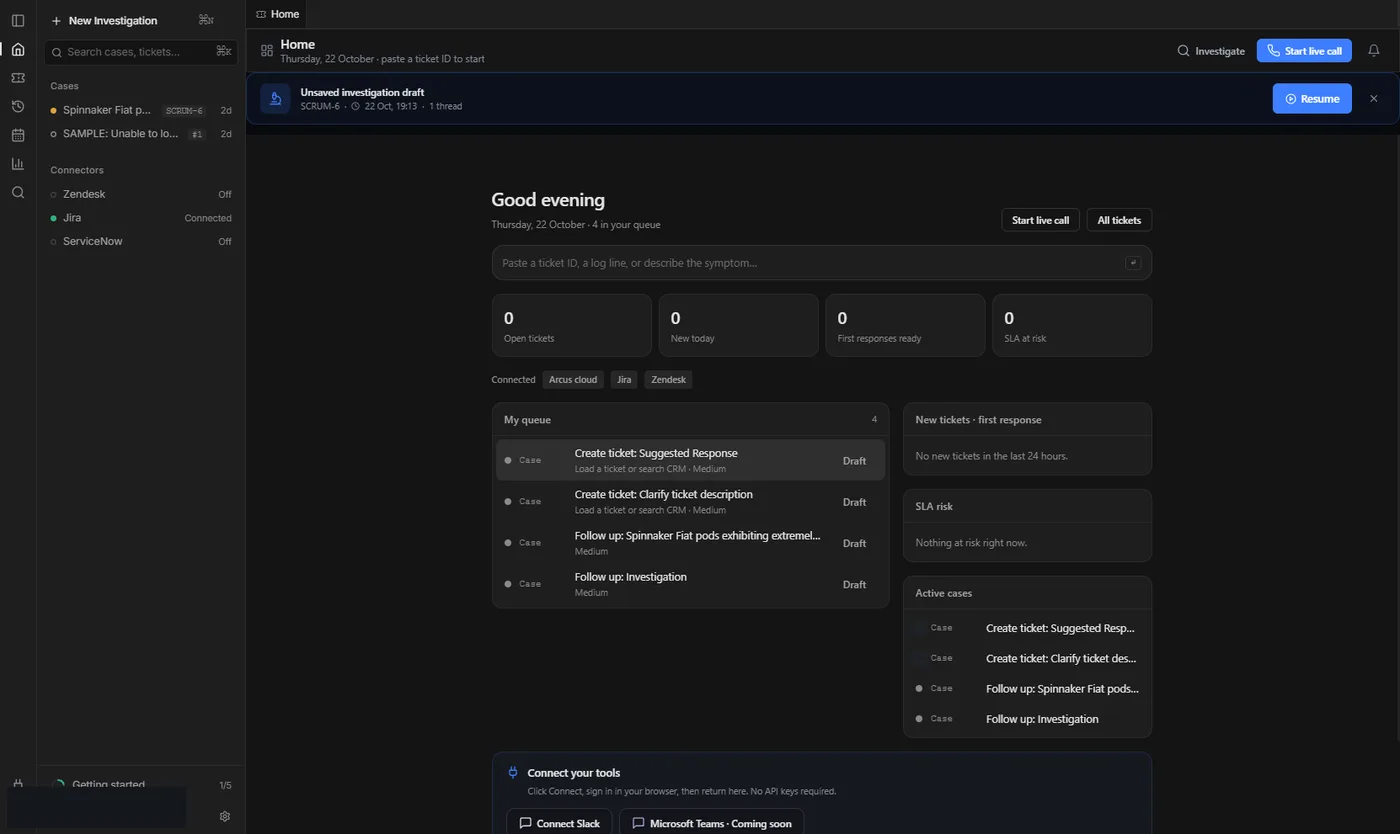
Connect Jira for the queue and for File bug. Email + API token works today; org OAuth is optional.
8 min read
What you get
- Load a Jira issue into Investigate from Cases, Home or paste.
- File bug can create a real Jira issue once external posts are on and a destination project is set.
- Copy markdown always works, even with posts off.
Connect with email + API token (fastest)
- In Atlassian account settings create an API token.
- In Solvaro: Settings → Integrations → Jira → Alternative credentials.
- Paste Jira site URL (https://your-site.atlassian.net), your Atlassian email and the API token → Save & test.
- Open Cases or Home. Your assigned issues appear when the site and token are valid.
File a bug from an investigation
- Finish or pause an investigation with a clear root cause.
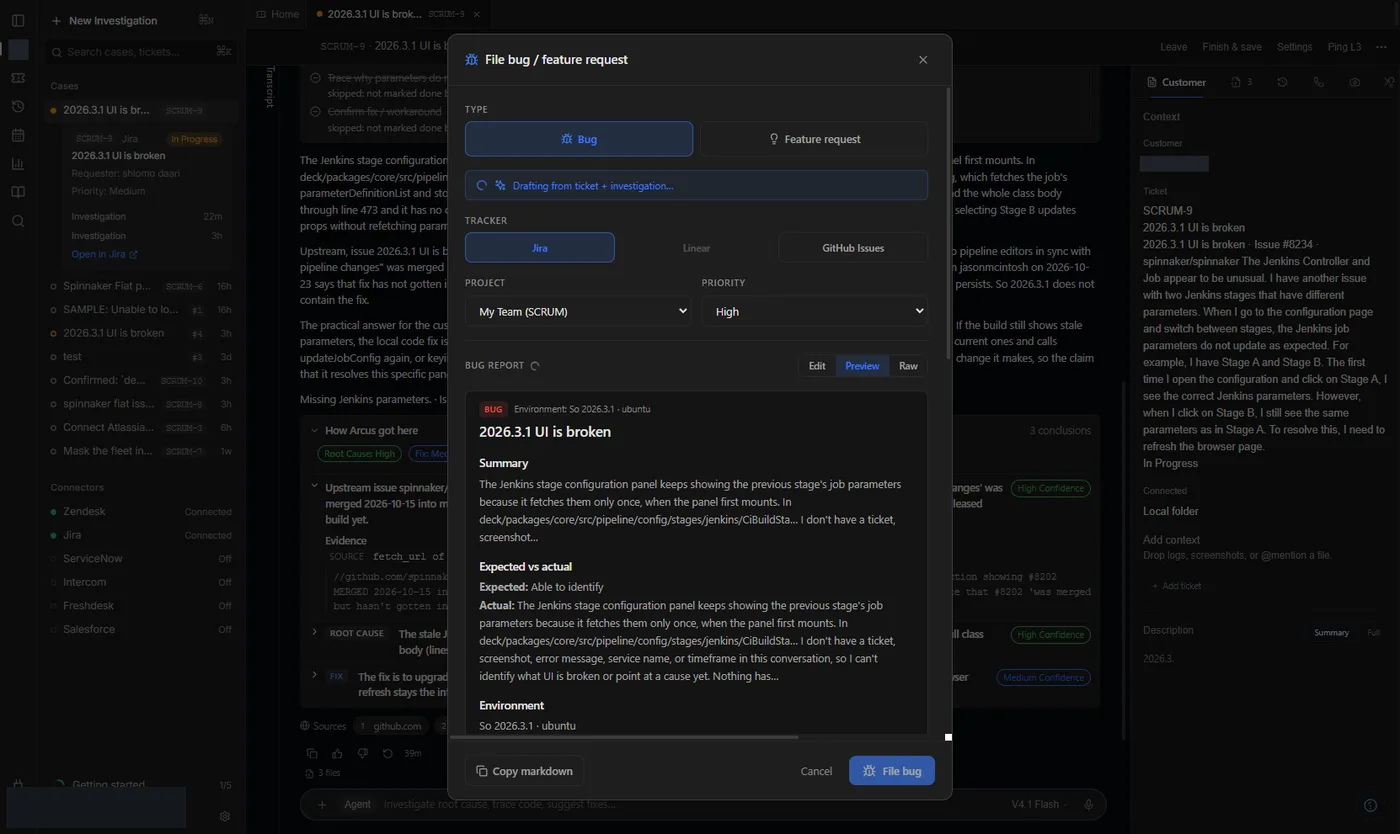
- Open ⋯ → File another bug / feature request (or File bug in the top bar).
- Edit the draft. Use Preview to read it as the engineer will see it.
- Copy markdown, or choose the Jira project and create the issue when posts are on.
Org OAuth (optional)
An org admin can register an Atlassian OAuth 2.0 (3LO) app and paste Client id and secret into Solvaro so teammates can Sign in with Jira instead of sharing API tokens. Until that exists, email + token is the supported path.
Next
File a bug
Turn the investigation into a bug draft. Copy puts it on the clipboard. Created means the tracker accepted it.
Cases: your assigned tickets
The Cases sidebar lists tickets assigned to you across connected helpdesks, with refresh and ticket cards.
Zendesk: connect step by step
Create the Zendesk OAuth client (or API token), paste it into Solvaro, sign in, and see your Cases queue.