Using Solvaro
Publish a knowledge article
Turn a resolved case into a help-center draft, review it, and publish only after you approve.
7 min read
From a resolved case
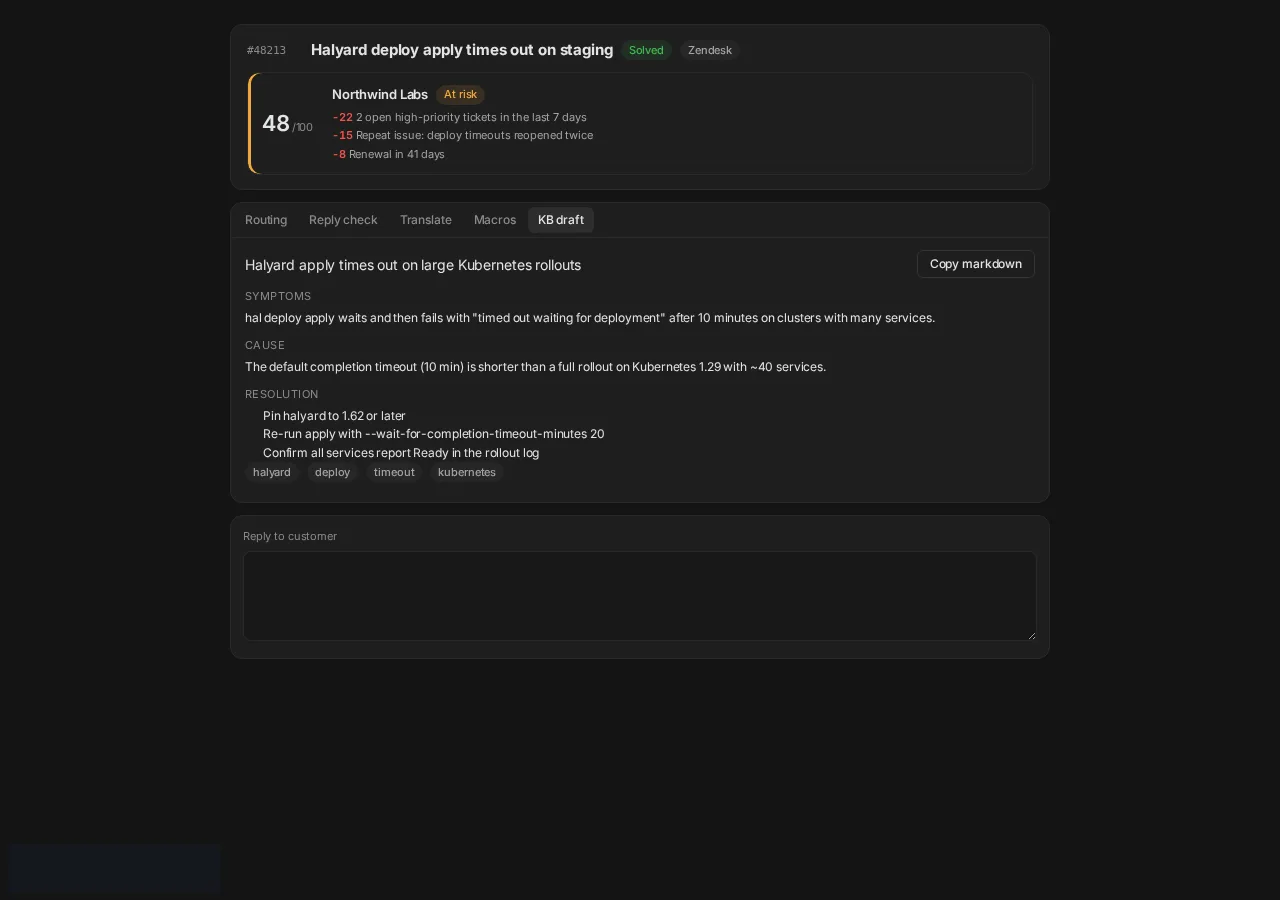
- Open Knowledge in the sidebar (or Case assist → KB draft).
- Pick a resolved case that needs an article or an update.
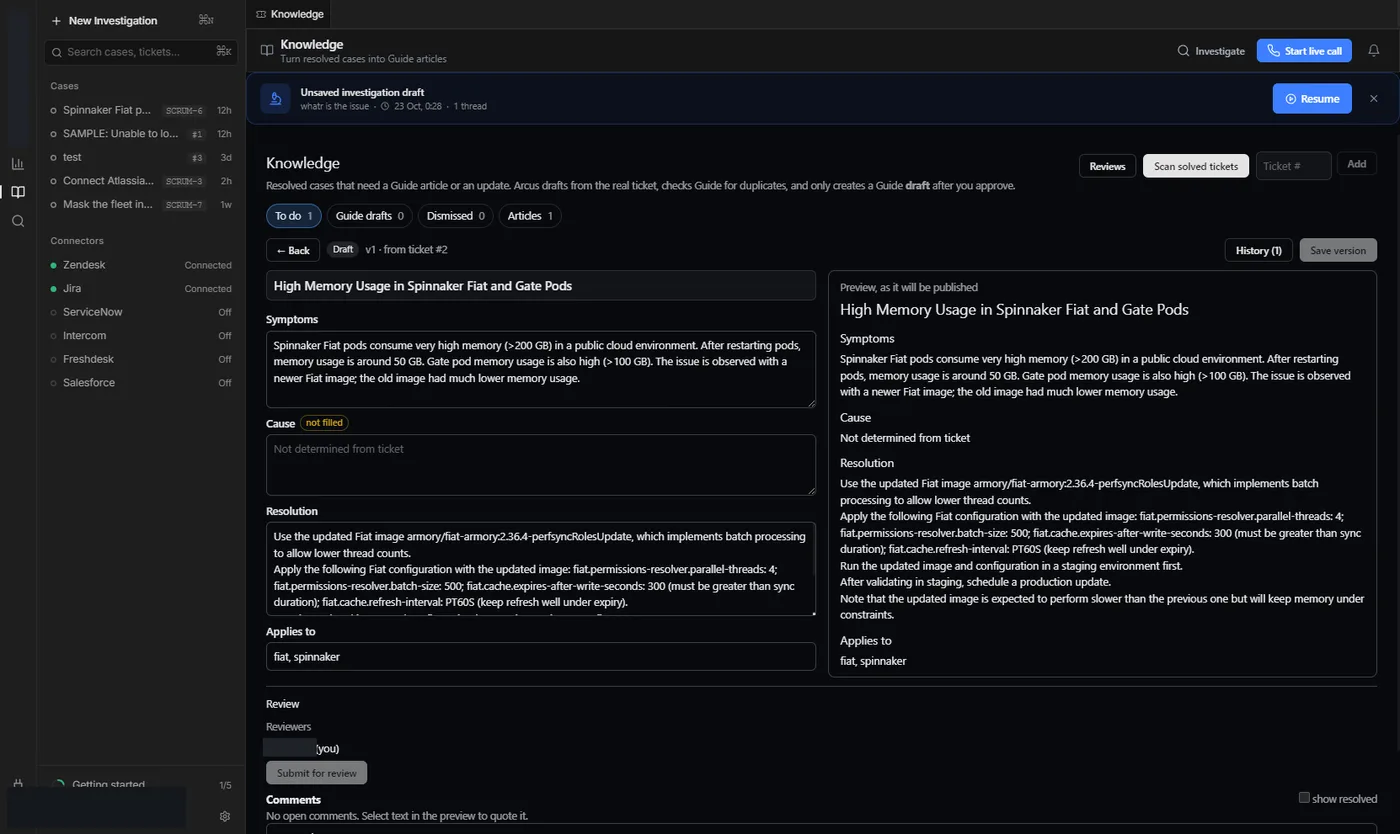
- Solvaro drafts symptoms, cause and resolution from the real ticket and checks your help center for duplicates.
- Edit the draft. Approve to create a Guide (or connected KB) draft — Solvaro does not publish silently.
Review
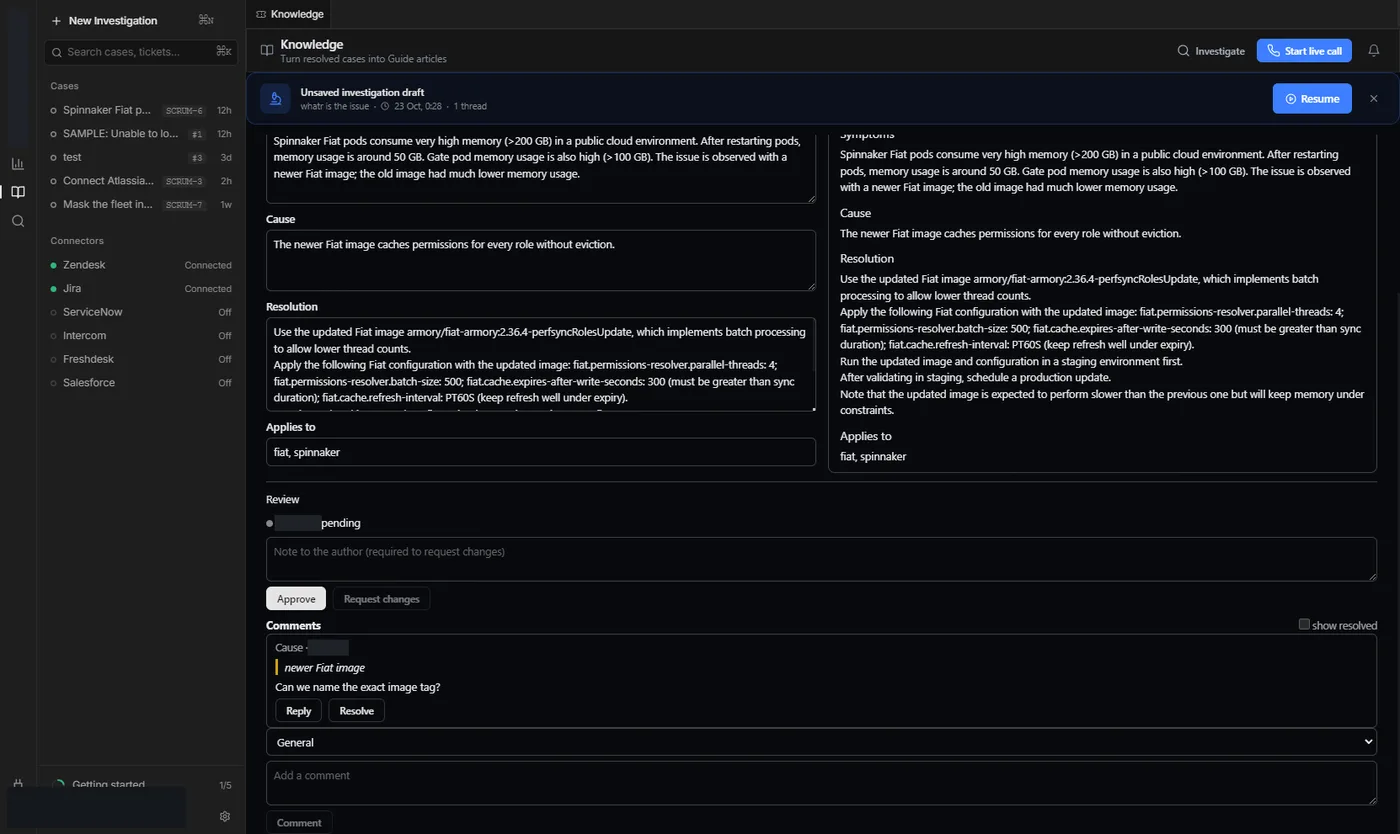
Use the review screen to confirm cause and resolution before the draft leaves Solvaro.
Destinations
- Zendesk Guide drafts when Zendesk is connected.
- GitHub: opens a markdown pull request on a new branch in your docs repo (never auto-merges).
- ServiceNow Knowledge and Salesforce Knowledge drafts when those systems are connected.
- Notion and Confluence drafts when those connectors are enabled.
- Set the team default publish destination under Knowledge settings. Publish links back to the draft.